What is CI/CD?
TL-DR; Integrating and Delivering a new version of the product through a series of automated steps.
Manually updating the version of any application is time consuming and error prone and thus the need for automation arised.
Prerequisites
- AWS Account
- EC2 running with docker installed, Great link to setup Docker
- Configured Security Group
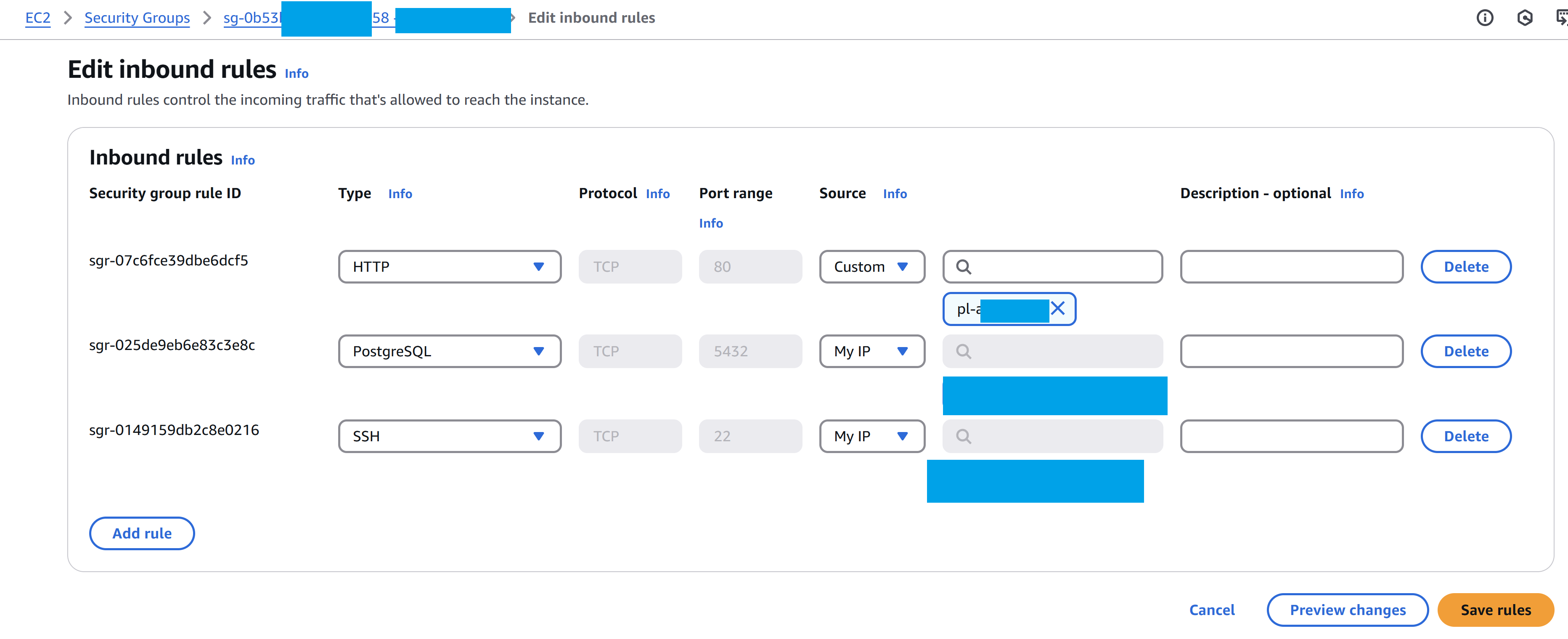
Do not open ports to the internet. For my current setup only port 80 is limited to CloudFront, and rest are opened to only my IP.
Are you wondering how I’m able to deploy from the Github Runner if it cannot access the EC2? Let’s see the pipeline.
CI/CD with Github Actions
Let’s see the yaml code that make the ci/cd pipeline allowing build, test and deploy dockerized apps.
Pipeline overview
-
Build:
- Checkout code,
- Run unit tests,
- Build docker images,
- Push images to AWS Elastic Container Registry (ECR).
-
Deploy:
- Configure AWS credentials
- Whitelist runner ip address
- BACKUP & Upload backup to S3
- Pull docker images from ECR,
- Start services with docker compose.
The below pipeline runs whenever a new tag is created. To create a new tag you can run the following commands.
git tag v1.1.6; git push origin --tagsAnother alternative to manually create a new tag from command line it to create a new release from the Github UI.
Key Points
- All traffic is blocked for security to the EC2, except the pot 80 that is opened to CloudFront.
- Each time the pipeline runs, the security groups is modified to allow inbound traffic on the ssh port, 22. When the pipeline finishes the IP is removed (either if it run succesfully or not).
- On each deploy I’m backing up the postgres database to S3 bucket - just in case something went wrong.
- Make sure to double tag the docker image. If not, when pushing another latest image, you will be left with dangling images.
A dangling image just means that you’ve created the new build of the image, but it wasn’t given a new name. So the old images you have becomes the “dangling image”. Those old image are the ones that are untagged and displays "
" on its name when you run docker images.
There are many improvements that can be done, but, as for now, I think this CI/CD pipeline is enough for a small startup or individual that just want to get things out there.
In the end, maybe I will get time to create a demo repository with the whole setup.
Pipeline code
name: CI/CD Pipeline
on:
  push:
    # branches: [ "master" ]
    tags:
      - v*

jobs:
  build:
    runs-on: ubuntu-latest

    steps:
    - name: Checkout code
      uses: actions/checkout@v3
    - name: Set Git tag version
      id: vars
      run: |
         echo "Building version: ${{  github.ref_name }}"
         echo "tag=${{  github.ref_name }}" >> $GITHUB_OUTPUT
    - name: Echo Version
      run: |
          echo "Image tag is: curriculumapi:${{ steps.vars.outputs.tag }}"
    - name: Build API
      run: docker build ./src/ --file ./src/Curriculum.API/Dockerfile -t curriculumapi:latest
    - name: Push to ECR
      id: ecr
      uses: jwalton/gh-ecr-push@v2
      with:
        access-key-id: ${{ secrets.AWS_ACCESS_KEY_ID }}
        secret-access-key: ${{ secrets.AWS_SECRET_ACCESS_KEY }}
        region: ${{ secrets.AWS_DEFAULT_REGION }}
        local-image: curriculumapi:latest
        image: curriculumapi:latest, curriculumapi:${{ steps.vars.outputs.tag }}

    - name: Build Generator
      run: docker build ./src/Curriculum.Generator/ --file ./src/Curriculum.Generator/Dockerfile --tag generator:latest
    - name: Push to ECR
      id: ecr-react-pdf
      uses: jwalton/gh-ecr-push@v2
      with:
        access-key-id: ${{ secrets.AWS_ACCESS_KEY_ID }}
        secret-access-key: ${{ secrets.AWS_SECRET_ACCESS_KEY }}
        region: ${{ secrets.AWS_DEFAULT_REGION }}
        local-image: generator:latest
        image: generator:latest, generator:${{ steps.vars.outputs.tag }}

  deploy:
    runs-on: ubuntu-latest
    needs: build
    steps:
     - name: configure aws credentials
       uses: aws-actions/configure-aws-credentials@v1
       with:
          aws-access-key-id: ${{ secrets.AWS_ACCESS_KEY_ID }}
          aws-secret-access-key: ${{ secrets.AWS_SECRET_ACCESS_KEY }}
          aws-region: ${{ secrets.AWS_DEFAULT_REGION }}
     - name: get runner ip address
       id: ip
       uses: haythem/public-ip@v1.2
     - name: whitelist runner ip address
       run: |
          aws ec2 authorize-security-group-ingress \
            --group-id ${{ secrets.AWS_SECURITY_GROUP_ID }} \
            --protocol tcp \
            --port 22 \
            --cidr ${{ steps.ip.outputs.ipv4 }}/32

     - name: Set permissions for private key
       run: |
        echo "${{ secrets.SSH_PRIVATE_KEY }}" > key.pem
        chmod 600 key.pem
     - name: Docker login
       run:  |
        ssh -o StrictHostKeyChecking=no -i key.pem ec2-user@${{ secrets.EC2_INSTANCE_IP }} 'aws ecr get-login-password --region eu-central-1 | docker login --username AWS --password-stdin ${{ secrets.AWS_ECR_NAME }}'
     - name: Stop services
       run:  |
        ssh -o StrictHostKeyChecking=no -i key.pem ec2-user@${{ secrets.EC2_INSTANCE_IP }} 'docker-compose stop generator curriculum.api'
     - name: BACKUP & Upload backup to S3
       id: backup
       run: |
        # Generate the current date
        DATE=$(date +%Y-%m-%d_%H_%M_%S)
        echo "date is $DATE"

        # Create the backup file name
        BACKUP_FILE="backup_${DATE}.sql"
        echo "Backing up file is: $BACKUP_FILE"

        ssh -o StrictHostKeyChecking=no -i key.pem ec2-user@${{ secrets.EC2_INSTANCE_IP }} "
          docker exec -t postgres pg_dumpall -c -U root > /home/ec2-user/$BACKUP_FILE
        "

        echo "Backup file created: $BACKUP_FILE"
        echo "Uploading to S3..."

        ssh -o StrictHostKeyChecking=no -i key.pem ec2-user@${{ secrets.EC2_INSTANCE_IP }} "
          aws s3 cp /home/ec2-user/$BACKUP_FILE s3://${{ secrets.AWS_S3_BACKUP_NAME }}
        "
        echo "Removing backup file..."
        ssh -o StrictHostKeyChecking=no -i key.pem ec2-user@${{ secrets.EC2_INSTANCE_IP }} "
            rm /home/ec2-user/$BACKUP_FILE
        "
     - name: Remove API Image
       run:  |
        ssh -o StrictHostKeyChecking=no -i key.pem ec2-user@${{ secrets.EC2_INSTANCE_IP }} 'docker rmi ${{ secrets.AWS_ECR_NAME }}/curriculumapi || true'
     - name: Remove Generator Image
       run:  |
        ssh -o StrictHostKeyChecking=no -i key.pem ec2-user@${{ secrets.EC2_INSTANCE_IP }} 'docker rmi ${{ secrets.AWS_ECR_NAME }}/generator || true'
     - name: Pull API Image
       run: |
        ssh -o StrictHostKeyChecking=no -i key.pem ec2-user@${{ secrets.EC2_INSTANCE_IP }} 'docker pull ${{ secrets.AWS_ECR_NAME }}/curriculumapi'
     - name: Pull Generator Image
       run: |
        ssh -o StrictHostKeyChecking=no -i key.pem ec2-user@${{ secrets.EC2_INSTANCE_IP }} 'docker pull ${{ secrets.AWS_ECR_NAME }}/generator'
     - name: Start services
       run:  |
        ssh -o StrictHostKeyChecking=no -i key.pem ec2-user@${{ secrets.EC2_INSTANCE_IP }} 'docker-compose up -d'
     - name: Post cleanup - revoke runner ip address
       if: always()
       run: |
          aws ec2 revoke-security-group-ingress \
            --group-id ${{ secrets.AWS_SECURITY_GROUP_ID }} \
            --protocol tcp \
            --port 22 \
            --cidr ${{ steps.ip.outputs.ipv4 }}/32
     - name: Clean up
       if: always()
       run: rm key.pem
Another version of this pipeline that I experimeted with is the following:
- on each commit to master, running the pipeline,
- docker image tag was create {branch}.{commit}
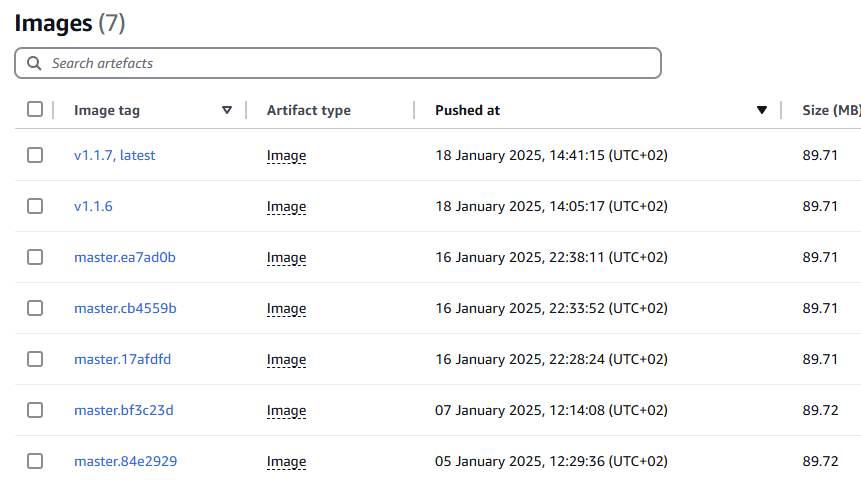
Personally, I like to commit as often as possible and thus, the solution with git tags is more enterprise and also the version has a meaning.
colleague: What version is currently on UAT?
me: v1.2.3 or master.bf3c23d